第2章: ポリシー管理
CA Policy Analyzer ユーザーマニュアル
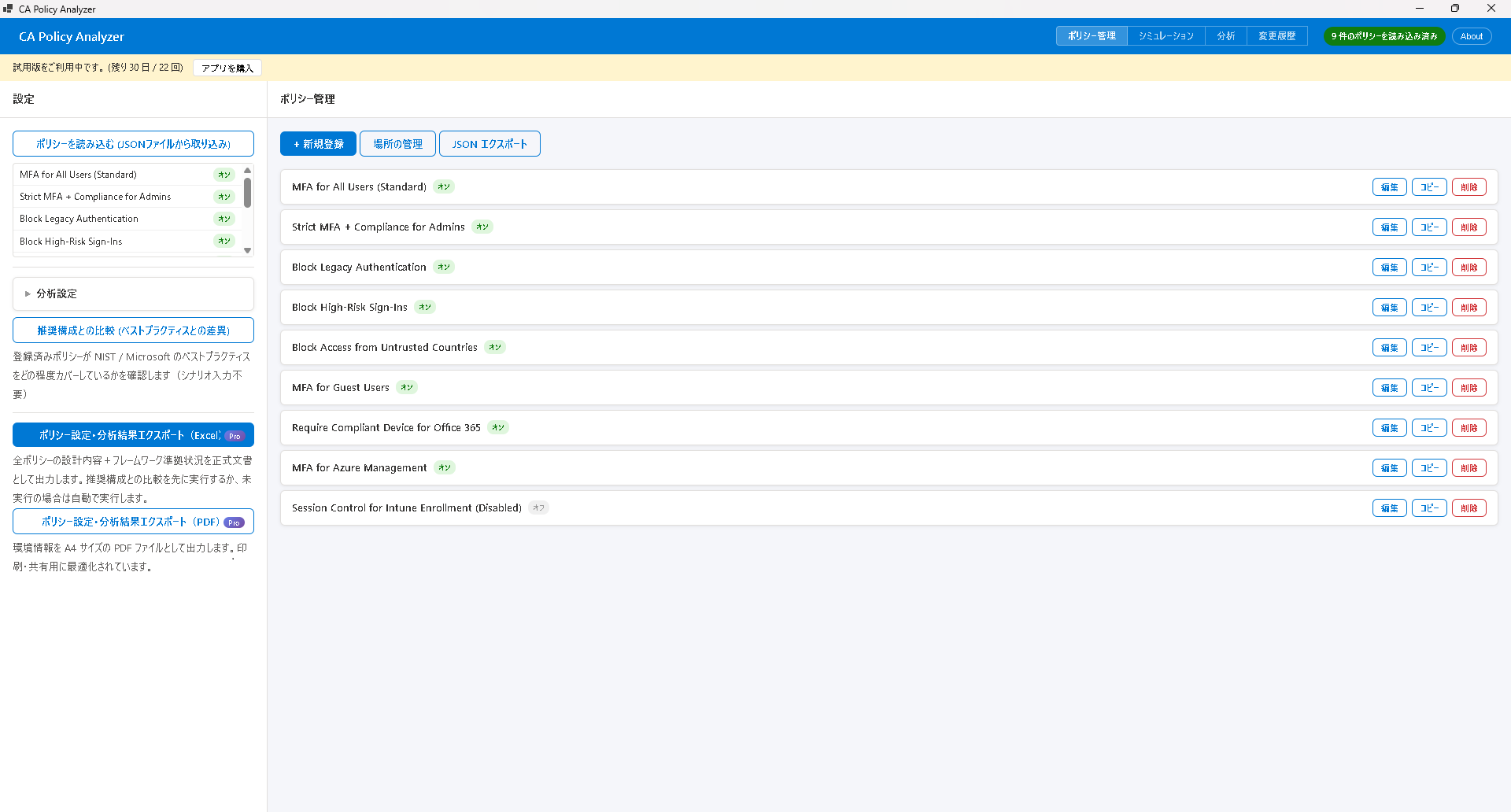
ポリシーの読み込み(JSON インポート)
Microsoft Entra 管理センターや Graph API からエクスポートした JSON ファイルを読み込んで、ポリシーを登録します。
- 左サイドバーの「ポリシー読み込み」ボタンをクリックします。
- ファイル選択ダイアログが開くので、JSON ファイルを選択します。
- 変更記録の入力画面が表示されます。以下の項目を入力してください:
- 変更者(必須): 誰がこのインポートを実施したかを記録します。
- 変更理由(必須): なぜこのインポートを行ったかの理由を記録します。
- 「読み込み」ボタンをクリックすると、ポリシーが一覧に追加されます。
JSON ファイルは Microsoft Entra 管理センターまたは Graph API からエクスポートした形式に対応しています。単一ポリシーの JSON と、複数ポリシーを含む配列形式の JSON のどちらにも対応しています。
ポリシーの手動登録
JSON ファイルがない場合でも、手動でポリシーを作成・登録できます。「新規ポリシー」ボタンから以下の項目を入力してください。
基本情報
- ポリシー名(必須): ポリシーを識別するための名前を入力します。
- 状態: 有効 / レポート専用 / 無効 のいずれかを選択します。
割り当て
- ユーザー: 対象に含めるユーザー、および除外するユーザーを指定します。
- ロール: 対象に含めるロール、および除外するロールを指定します。
- グループ: 対象に含めるグループ、および除外するグループを指定します。
対象リソース
- アプリケーション: 対象に含めるアプリケーション、および除外するアプリケーションを指定します。
条件
- デバイスプラットフォーム: Windows, iOS, Android, macOS, Linux など
- クライアントアプリ: ブラウザー、モバイルアプリ/デスクトップ、レガシー認証クライアント
- 場所: ネームドロケーション(名前付きの場所)による条件
- ユーザーリスク: ユーザーアカウントの危険度レベル
- サインインリスク: サインイン試行の危険度レベル
- デバイスフィルター: デバイスの属性に基づくフィルタリング条件
アクセス制御
- ブロック: アクセスを拒否します。
- 許可: 以下の条件付きでアクセスを許可します。
- 多要素認証(MFA)を要求
- 準拠デバイスを要求
- ハイブリッド Azure AD 参加済みデバイスを要求
セッション
- 監視のみ: アクセスを許可しつつ、アクティビティを監視します。
- ダウンロードブロック: ファイルのダウンロードを制限します。
- サインイン頻度: 再認証を要求する間隔を設定します。
- 永続的ブラウザーセッション: ブラウザーを閉じてもセッションを維持するかどうかを設定します。
ポリシーの編集
登録済みのポリシーを編集して、設定内容を変更できます。
- ポリシー一覧から編集したいポリシーを選択します。
- 「編集」ボタンをクリックします。
- フォーム上で各項目を変更します。
- 「保存」ボタンをクリックして変更を確定します。
変更を保存すると、変更内容は変更履歴に自動的に記録されます。いつ、誰が、どの項目を変更したかを後から確認できます。
ポリシーの削除
不要になったポリシーを一覧から削除できます。
- ポリシー一覧から削除したいポリシーを選択します。
- 「削除」ボタンをクリックします。
- 確認ダイアログが表示されるので、「はい」を選択して削除を確定します。
削除は元に戻せません。必要に応じて、事前に JSON エクスポートでバックアップを取ってから削除してください。
ポリシーのコピー
既存のポリシーをベースに新しいポリシーを作成する場合、コピー機能が便利です。
- コピー元のポリシーを一覧から選択します。
- 「コピー」ボタンをクリックします。
- コピーされたポリシーが「[元の名前] - コピー」という名前で一覧に追加されます。
- 必要に応じてコピーしたポリシーを編集し、新しいポリシーとして活用します。
JSON エクスポート PRO
登録済みのポリシーを JSON ファイルとしてエクスポートできます。
- エクスポートしたいポリシーを一覧から選択します(複数選択可)。
- 「エクスポート」ボタンをクリックします。
- 保存先とファイル名を指定して JSON ファイルを保存します。
エクスポートした JSON は、他の環境での参照やバックアップとして利用できます。また、別の CA Policy Analyzer インスタンスに再インポートすることも可能です。
この機能は Pro プランで利用できます。Free プランでは JSON エクスポート機能はご利用いただけません。
Chapter 2: Policy Management
CA Policy Analyzer User Manual
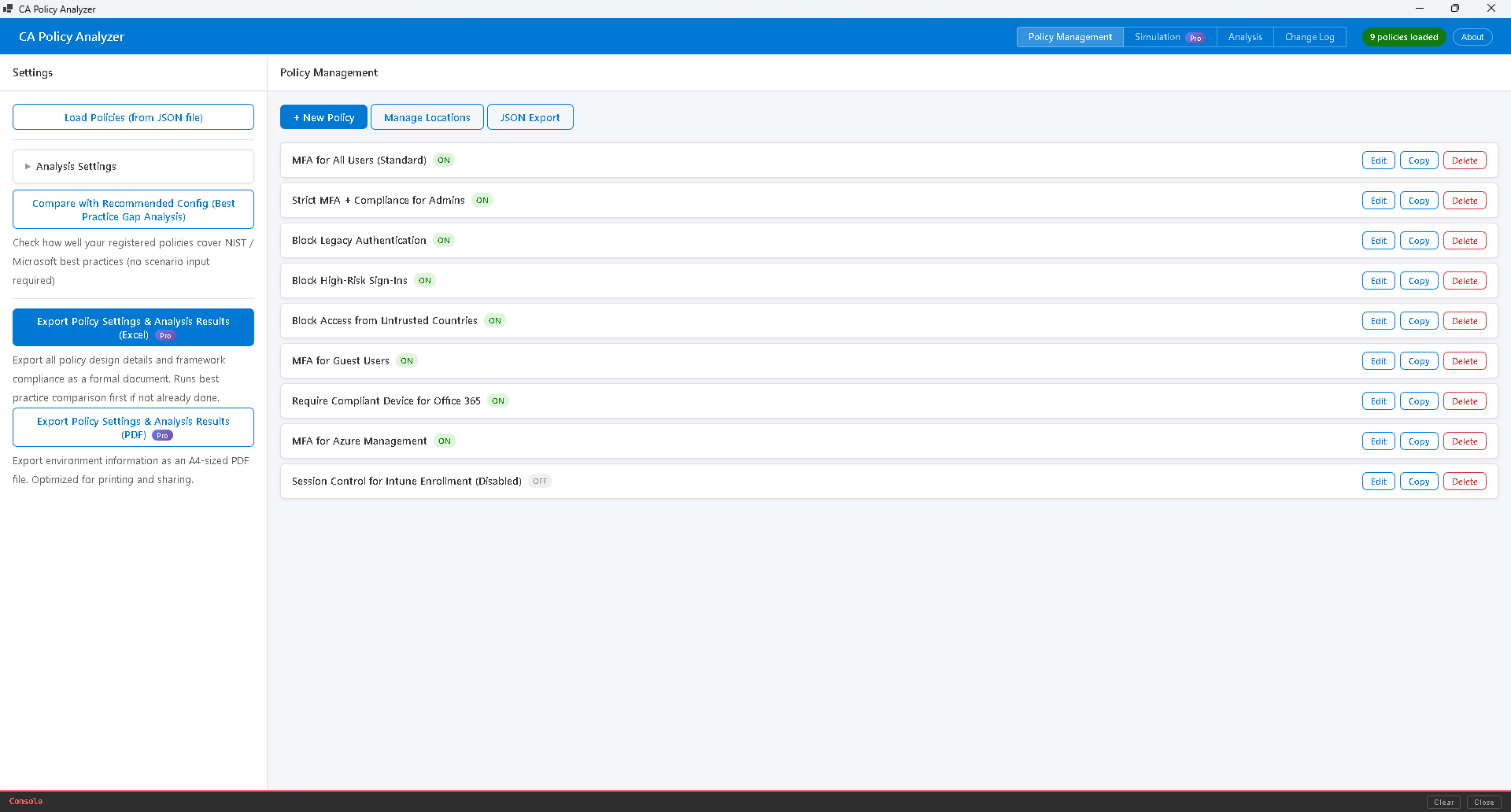
Loading Policies (JSON Import)
Import JSON files exported from the Microsoft Entra admin center or Graph API to register your policies.
- Click the "Load Policies" button in the left sidebar.
- A file selection dialog will open. Select your JSON file.
- A change record input screen will appear. Fill in the following fields:
- Changed By (required): Records who performed this import.
- Change Reason (required): Records the reason for this import.
- Click the "Load" button to add the policies to the list.
The application supports JSON files exported from the Microsoft Entra admin center or Graph API. Both single-policy JSON and array-format JSON containing multiple policies are supported.
Manual Policy Registration
Even without a JSON file, you can create and register policies manually. Click the "New Policy" button and fill in the following fields.
Basic Information
- Policy Name (required): Enter a name to identify the policy.
- State: Select one of Enabled / Report-only / Disabled.
Assignments
- Users: Specify users to include and exclude from the policy scope.
- Roles: Specify roles to include and exclude from the policy scope.
- Groups: Specify groups to include and exclude from the policy scope.
Target Resources
- Applications: Specify applications to include and exclude from the policy scope.
Conditions
- Device Platforms: Windows, iOS, Android, macOS, Linux, etc.
- Client Apps: Browser, mobile apps/desktop clients, legacy authentication clients
- Locations: Conditions based on named locations
- User Risk: Risk level of the user account
- Sign-in Risk: Risk level of the sign-in attempt
- Device Filter: Filtering conditions based on device attributes
Access Controls
- Block: Deny access entirely.
- Grant: Allow access with the following conditions:
- Require multi-factor authentication (MFA)
- Require compliant device
- Require hybrid Azure AD joined device
Session
- Monitor Only: Allow access while monitoring activity.
- Block Download: Restrict file downloads.
- Sign-in Frequency: Set the interval for requiring re-authentication.
- Persistent Browser Session: Configure whether sessions persist after closing the browser.
Editing Policies
You can edit registered policies to modify their configuration.
- Select the policy you want to edit from the policy list.
- Click the "Edit" button.
- Modify the desired fields in the form.
- Click the "Save" button to confirm your changes.
When you save changes, the modifications are automatically recorded in the change history. You can review who changed what and when at any time.
Deleting Policies
You can remove policies that are no longer needed from the list.
- Select the policy you want to delete from the policy list.
- Click the "Delete" button.
- A confirmation dialog will appear. Select "Yes" to confirm the deletion.
Deletion cannot be undone. We recommend creating a backup via JSON export before deleting any policy.
Copying Policies
The copy feature is useful when you want to create a new policy based on an existing one.
- Select the source policy from the list.
- Click the "Copy" button.
- A copy of the policy will be added to the list with the name "[Original Name] - Copy".
- Edit the copied policy as needed and use it as a new policy.
JSON Export PRO
You can export registered policies as JSON files.
- Select the policies you want to export from the list (multiple selection is supported).
- Click the "Export" button.
- Specify the destination and file name to save the JSON file.
Exported JSON files can be used for reference in other environments or as backups. They can also be re-imported into another CA Policy Analyzer instance.
This feature is available with the Pro plan. JSON export is not available in the Free plan.